
Working with Collections
Learn how to organise assets into collections, share them with your team, and manage collection contents.
What Are Collections?
Collections are curated groups of assets -- like folders or playlists for your digital content. Use them to organise assets for campaigns, projects, brand kits, presentations, or any other grouping.
Key things to know:
An asset can belong to multiple collections.
Collections are scoped to your client or brand -- you can only see collections within your organisation.
Creating a Collection
You can create a new collection in two ways:
From the asset detail view: Click "Add to Collection", then click "+ New Collection".
From the bulk action toolbar: Select one or more assets, click "Add to Collection", then click "+ New Collection".
Then:
Enter a collection name (up to 200 characters).
Click "Create & Add".
The new collection is created and the selected asset(s) are added to it immediately.
Managing Collections
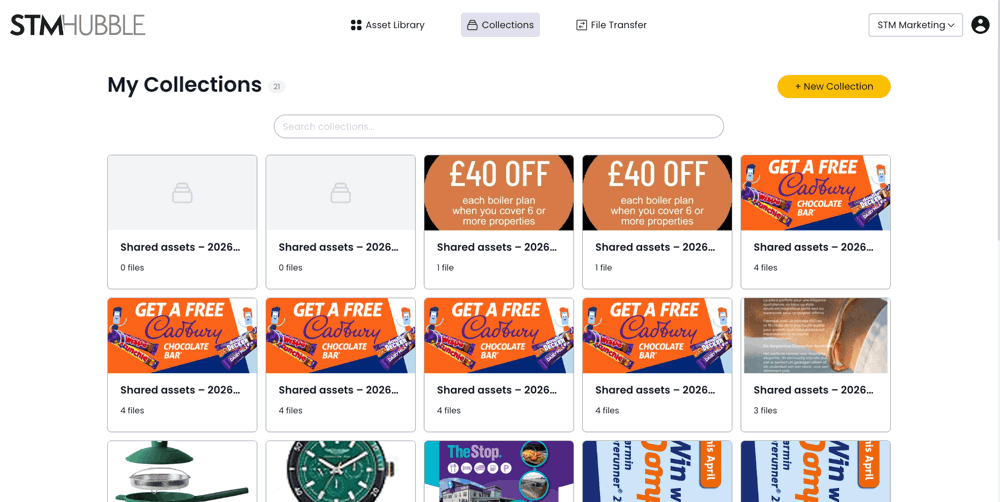
Browse your collections from the Collections page.
Search collections by name using the search bar.
Each collection card shows: name, description, and asset count.
Adding Assets to a Collection
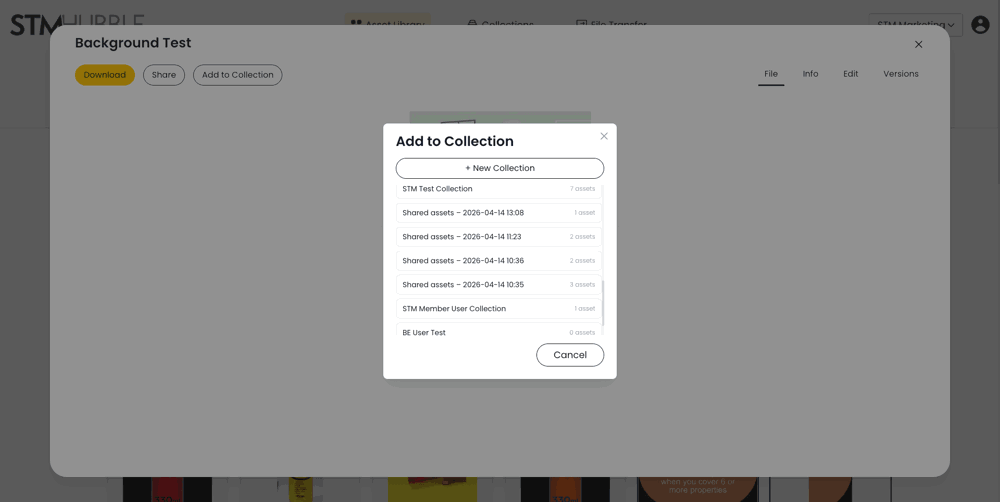
Single Asset
Open the asset detail view by clicking the thumbnail.
Click "Add to Collection".
Select a collection from the list.
Multiple Assets
Select assets using the checkboxes on the asset cards.
Click "Add to Collection" in the bulk action toolbar.
Select a collection from the list.
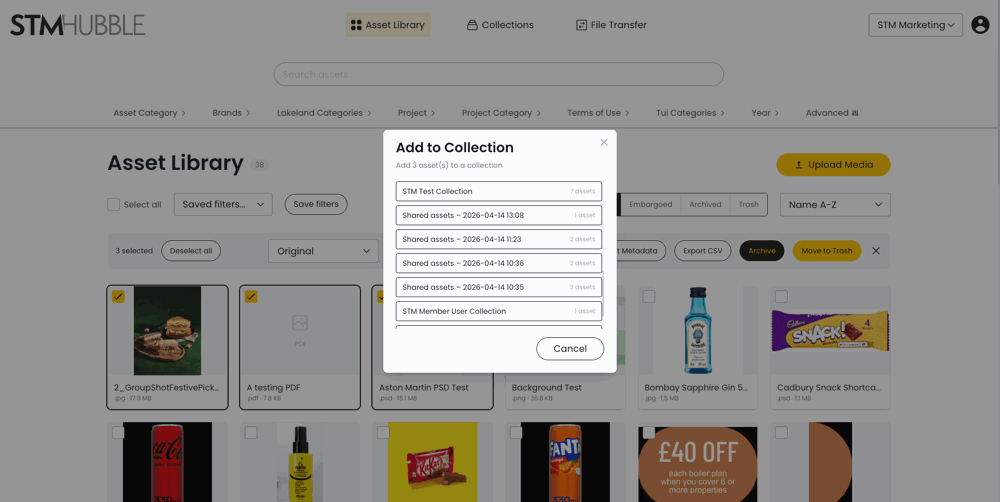
Each collection in the list shows its name and current asset count, making it easy to identify the right one.
You can add assets to any collection you own or have edit access to.
Viewing Collection Contents
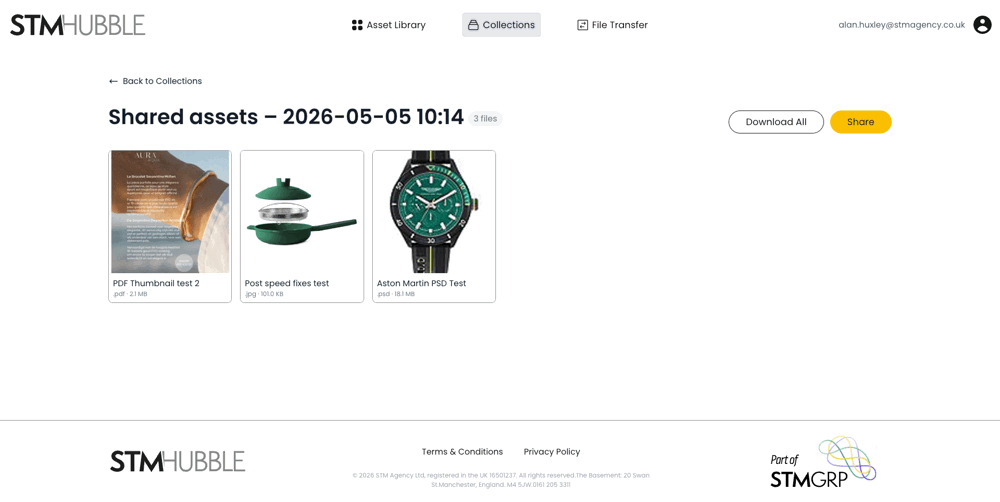
Open a collection to see its assets displayed as a thumbnail grid.
Assets within a collection can be reordered by dragging and dropping.
Click "Save Order" after reordering to save the custom arrangement.
To remove an asset from a collection, use the remove button on its thumbnail.
Removing an asset from a collection does not delete it from the library -- it simply removes it from that particular grouping.
Sharing Collections
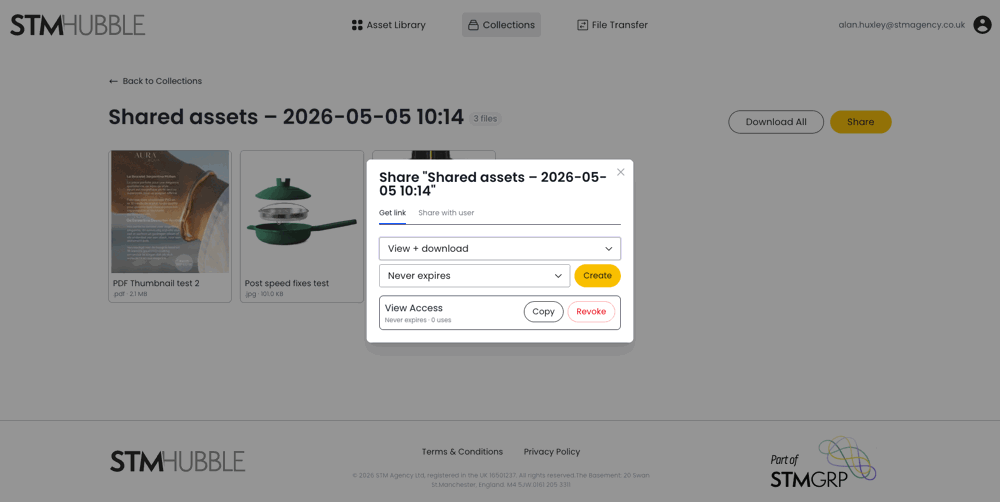
Click the Share button on a collection to open the sharing panel.
Share with Users
Enter the users email.
Select a permission level:
View -- can see the collection and its assets.
Edit -- can add/remove assets and reorder.
Click "Grant".
Create a Public Share Link
Click "Create Share Link".
Optionally set an expiry date and maximum number of uses.
Click "Generate".
Copy the link to share with anyone.
Share links can provide View-only or View & Download access. You can revoke a share link at any time by clicking the Revoke button.
Tips
Use collections to prepare asset packages for campaigns or presentations.
Share a collection link instead of sending individual files -- it is easier for recipients and keeps everything in one place.
Set expiry dates on share links for time-sensitive content.
One asset can live in multiple collections -- no need to duplicate files.