
File Transfer (Express Sharing)
What is File Transfer?
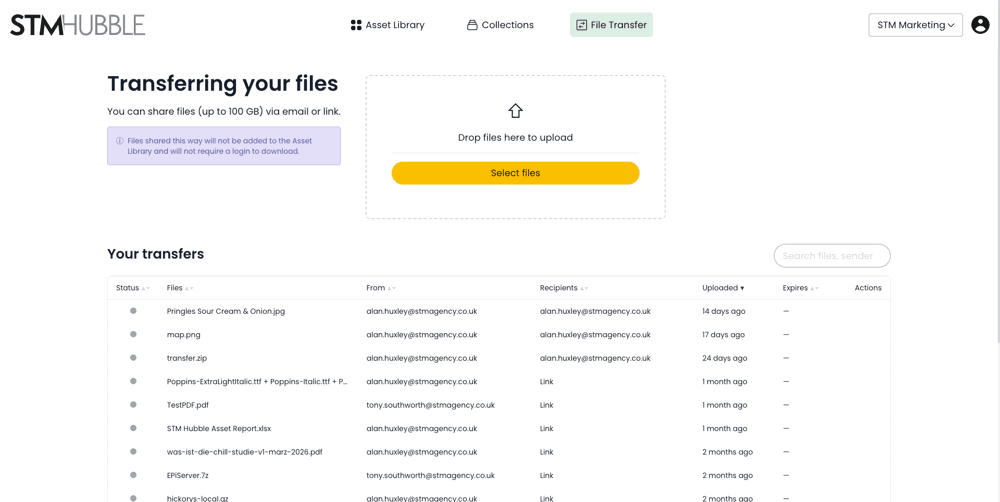
File Transfer is a quick way to share files with anyone, without them appearing in the main asset library. Upload files, set an expiry period, and get a shareable link. Recipients can download files without needing a portal account.
It is great for sharing large files, one-off deliveries, or files with external partners. File Transfer requires the Transfer Manager permission.
Creating a File Transfer
Navigate to the File Transfers section of the portal and follow the four-step wizard.
Step 1 — Select Files
Drag and drop files into the upload area, or click to browse your device.
You can upload multiple files (up to 40 GB total).
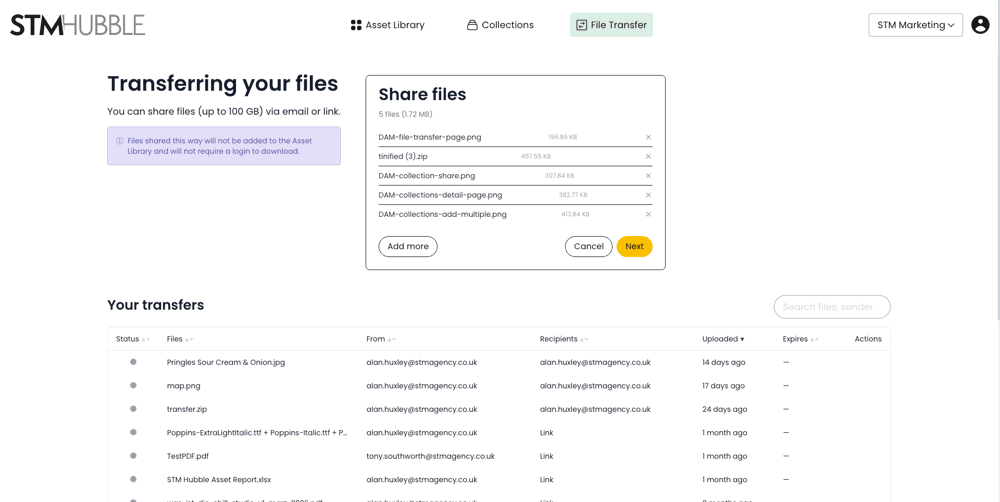
Step 2 — Review Files
Review your selected files before proceeding.
Add or remove files as needed.
Step 3 — Configure Sharing
Choose how to share:
Link — get a copyable URL to share however you like.
Email — send the transfer link directly to recipients.
Set the expiry period: 1 day, 3 days, 1 week, 2 weeks, or 1 month.
Files are automatically deleted when the transfer expires.
Step 4 — Success
A success screen appears with a green checkmark.
Copy the shareable link using the copy icon.
Click Share More to create another transfer.
What Recipients See
Recipients open the link in their browser — no login is required. They see the transfer details, including:
A file list with names and sizes
Total transfer size
Expiration date
They can download files individually or click Download All to get everything as a single ZIP file. Once the transfer expires, the link stops working and files are deleted.
Managing Your Transfers
View your transfer history in the Transfers section. Each transfer shows a status indicator, file names, recipient info, dates, and action buttons.
Available actions:
Copy Link — copy the share URL to your clipboard.
Download — download the transferred files yourself.
Revoke — immediately disable the transfer link (files become inaccessible to recipients).
Tips
Set the shortest practical expiry to keep shared files secure.
Use File Transfer for sharing with external parties who do not have portal access.
Revoke transfer links as soon as they are no longer needed.
Transfer files are stored separately from the main asset library — they will not appear in the asset grid.
Large files are handled efficiently with chunked uploads, so you do not need to worry about upload timeouts.