
Getting Started with the DAM Portal
Welcome to the Digital Asset Management (DAM) portal. This guide will help you log in, find your way around, and understand what you can do.
1. Logging In
Visit the portal URL provided by your organisation.
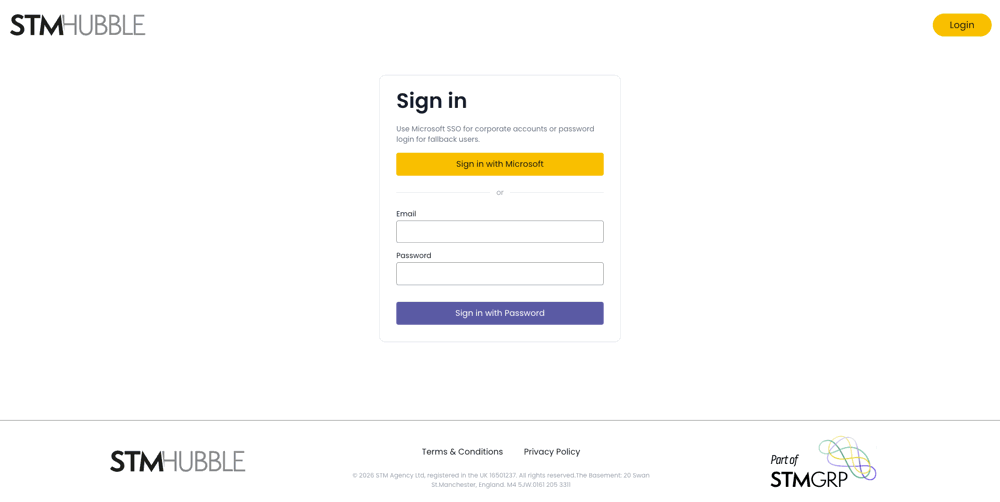
On the login page you have two options:
Sign in with Microsoft -- use your work Microsoft account. This is the recommended option.
Email and password -- for users who have been given a login by their administrator.
If this is your first time signing in with Microsoft, your account is created automatically and your administrator will add your correct access level.
If your email domain has not been whitelisted you will see an Access Denied page. Contact your administrator to request access.
Tip: Your session lasts for 8 hours of inactivity. After that you will be logged out automatically and need to sign in again.
2. Navigating the Portal
When you log in, you land on the Asset Library -- a thumbnail grid of every asset available to you.
Here is how the page is laid out from top to bottom:
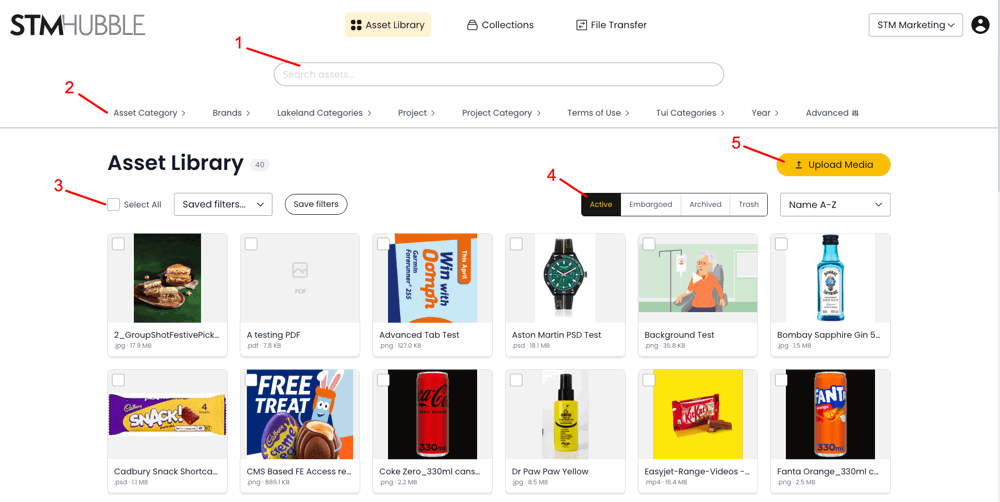
Global search bar -- at the top of the page. Type keywords to find assets quickly.
Filter navigation bar -- a horizontally scrollable row of dropdown menus for each metadata category (e.g. Brand, Product Category). There is also an Advanced button for additional filters.
Toolbar -- contains sort options, view controls, and status tabs.
Status tabs (visible if you have the relevant permissions): Active, Embargoed, Archived, and Bin.
Upload Media button -- in the top-right corner, visible if you have upload permission.
Each asset card in the grid shows:
A thumbnail preview of the asset
The display name
The file extension and file size
Date badges for embargo or archive dates (where applicable)
3. Understanding Your Permissions
What you can see and do in the portal depends on the permission groups your administrator has assigned to you. Buttons and features only appear if you have the relevant permission, so don't worry if something mentioned in this guide is not visible to you.
Common permission levels include:
Level | What you can do |
|---|---|
Read Only | Browse and download assets |
Standard User | Download, manage collections, share, file transfers |
Contributor | All of the above, plus upload, edit metadata, and external sharing |
Power User | All of the above, plus archive, delete (to bin), and view analytics |
Specific capabilities that may be enabled for your account:
Uploading assets
Downloading assets
Editing asset metadata
Archiving and deleting assets (to bin)
Managing collections
Sharing assets and collections
File transfers
Viewing analytics
Tip: If you need access to a feature you cannot see, contact your administrator and let them know which capability you require.
4. Quick Start Checklist
New to the portal? Follow these steps to get up and running:
Log in with your Microsoft account or your email and password.
Browse the asset grid or type keywords into the search bar to find assets.
Click any asset thumbnail to open the full asset detail view.
Use filters to narrow results by category, file type, date, and more.
Download assets using the download button in the asset detail view.
You are ready to go. For more detail on searching and filtering, see the Browsing, Searching & Filtering Assets guide.