
Version Control
What is Version Control?
Version control allows you to upload updated versions of an asset without losing the original. Every version is preserved in the asset's history — nothing is overwritten or deleted. You can view, download, or restore any previous version at any time.
This is especially useful when assets go through revisions, such as updated logos, revised documents, or re-edited photos.
Viewing Version History
Open an asset's detail view by clicking its thumbnail.
Click the Versions tab.
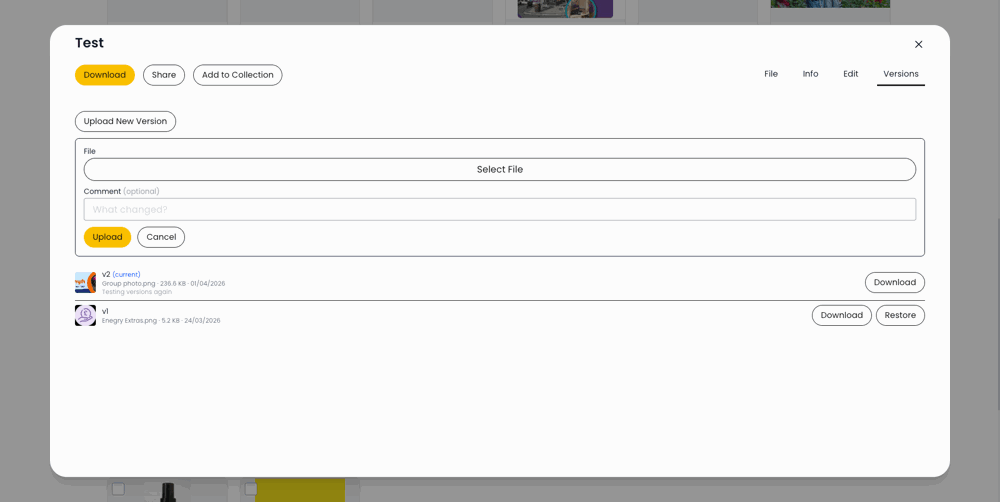
The version list shows all versions in reverse chronological order (newest first).
Each version displays:
Version number (e.g. v1, v2) with a "current" badge on the active version
Thumbnail (if available) or a grey placeholder
Filename of the uploaded file
File size
Upload date
Comment (if the uploader added one describing what changed)
Note: If an asset was uploaded before version control was available, you may see an empty state message.
Uploading a New Version
Open the asset detail view and go to the Versions tab.
Click Upload New Version (requires moderator or bypass permission).
A form expands with:
File selector — choose the new version file from your device.
Comment field — optionally describe what changed (e.g. "Updated brand colours", "Final approved version"). Maximum 500 characters.
Click Upload to submit the new version.
The new file becomes the current version immediately. The previous version is preserved in the version history, and a success message confirms the upload.
Downloading a Previous Version
In the Versions tab, find the version you need.
Click the Download button next to that version.
This downloads that specific version of the file. It is useful when you need to reference or revert to an earlier iteration.
Restoring a Previous Version
In the Versions tab, find the version you want to restore.
Click the Restore button (available on non-current versions; requires edit permission).
A confirmation message appears: "Restore this version? The current version will remain in history."
Confirm the action.
Restoring creates a new version entry — it does not delete the current version. The restored file becomes the new current version, while all previous versions (including the one that was current) remain in history.
Tips
Always add a comment when uploading new versions — it helps colleagues understand what changed.
Version control is non-destructive: restoring an old version never deletes anything.
Use version history to track the evolution of an asset over time.
Download previous versions when you need to compare changes or revert to an earlier design.